Asset Inventory Register Guide
Cloud assets, endpoints, and subprocessors with owners and data classification.
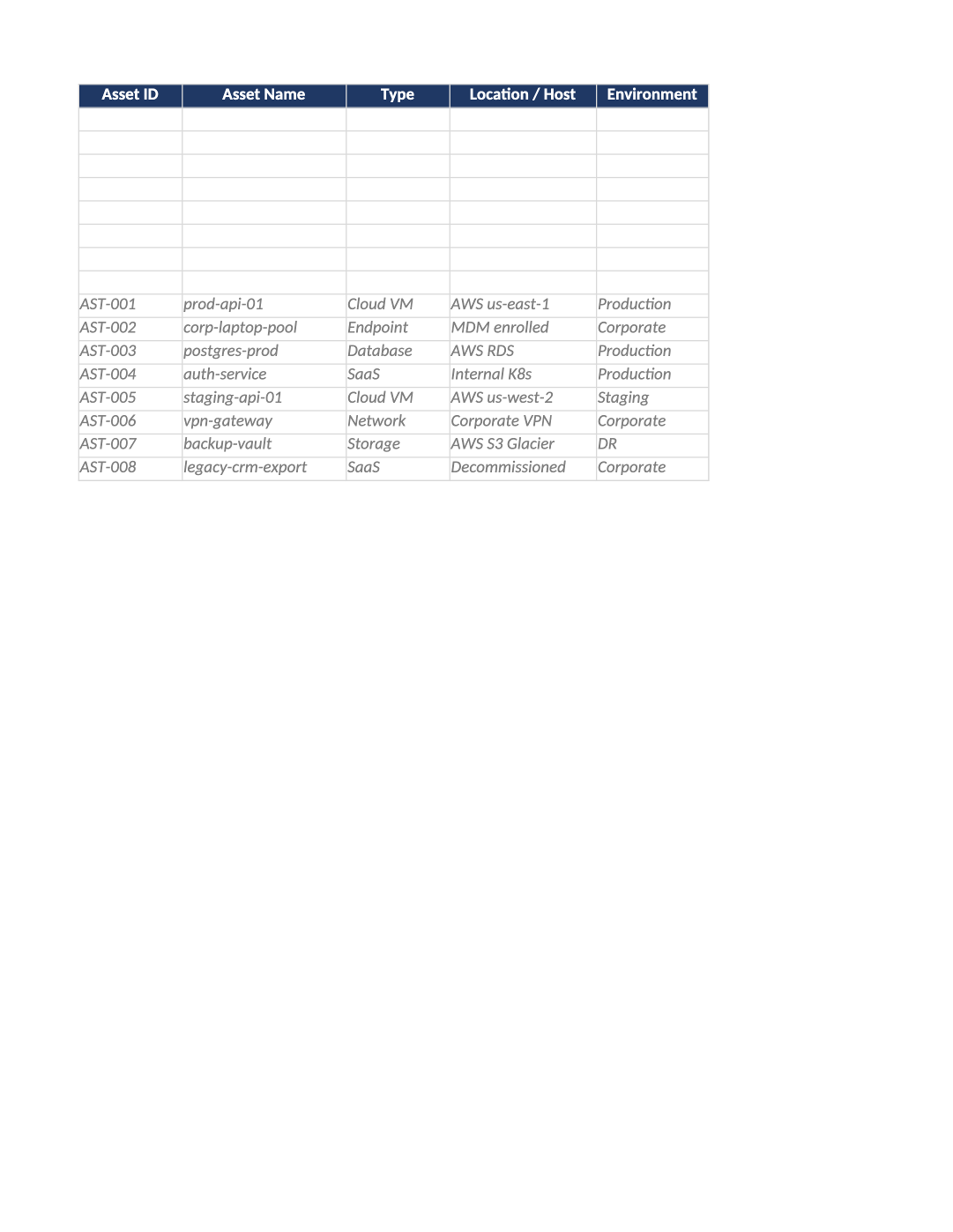
Asset Inventory and Subprocessor Register
Cloud assets, endpoints, and subprocessors with owners and data classification.
Asset inventory template SOC 2 — Reconcile with SOC-002 vendor list and COR-008 policy tiers. Update when onboarding vendors or decommissioning systems.
Recommended Owner: IT Operations | Security validates subprocessors
What this file is for
Document purpose
Asset inventory + subprocessor register (CC6.1, CC9.2).
In your program: Must reconcile with SOC-002 Section 9 vendors.
Before you start
Getting Started
- Enable Editing; start on the Instructions sheet for tab order and version metadata.
- Use dropdowns only in validated columns; delete gray sample rows before auditor samples.
- Check Dashboard after data entry — formulas summarize completion and risk.
Document tour
Fill out the file section by section
Work through the sections below in order. Each block matches a heading or tab in the downloaded SOC-014 file.
- List laptops, cloud accounts, critical SaaS — owner and classification.
- Refresh quarterly or on asset change.
Asset ID
- Assign stable Asset ID values — never reuse an ID for a different record in the audit period.
- Cross-reference IDs in related toolkit docs (SOC-021, COR-014, HR-001, etc.).
Asset Name
- Assign stable Asset Name values — never reuse an ID for a different record in the audit period.
- Cross-reference IDs in related toolkit docs (SOC-021, COR-014, HR-001, etc.).
Type
- Fill Type for every in-scope row on Asset Inventory — use dropdowns where provided.
- Do not leave cells blank for active records; use N/A with a short reason if truly not applicable.
Location / Host
- Fill Location / Host for every in-scope row on Asset Inventory — use dropdowns where provided.
- Do not leave cells blank for active records; use N/A with a short reason if truly not applicable.
Environment
- Fill Environment for every in-scope row on Asset Inventory — use dropdowns where provided.
- Do not leave cells blank for active records; use N/A with a short reason if truly not applicable.
Data Classification
- Use dropdown values for Data Classification — align definitions with COR-003, COR-008, or COR-009.
- Inconsistent scoring between this file and meeting minutes (SOC-017/SOC-019) triggers auditor questions.
Owner
- Name a person (not a team inbox) in Owner — auditors interview control owners.
- Must match COR-005 org chart or SOC-024 control owner assignments where applicable.
Status
- Select Status from the dropdown — free text breaks Dashboard formulas and heatmaps.
- Update through the lifecycle (Not Started → In Progress → Complete/Closed) before sign-off.
Last Review
- Use consistent Last Review format (YYYY-MM-DD) aligned with HRIS, IdP, or LMS exports.
- Dates must match supporting evidence — auditors compare log timestamps to HR records.
Custodian
- Name a person (not a team inbox) in Custodian — auditors interview control owners.
- Must match COR-005 org chart or SOC-024 control owner assignments where applicable.
Vendor ID
- Assign stable Vendor ID values — never reuse an ID for a different record in the audit period.
- Cross-reference IDs in related toolkit docs (SOC-021, COR-014, HR-001, etc.).
Vendor Name
- Assign stable Vendor Name values — never reuse an ID for a different record in the audit period.
- Cross-reference IDs in related toolkit docs (SOC-021, COR-014, HR-001, etc.).
Risk Tier
- Assign stable Risk Tier values — never reuse an ID for a different record in the audit period.
- Cross-reference IDs in related toolkit docs (SOC-021, COR-014, HR-001, etc.).
Function / Data
- Fill Function / Data for every in-scope row on Asset Inventory — use dropdowns where provided.
- Do not leave cells blank for active records; use N/A with a short reason if truly not applicable.
Data Location
- Fill Data Location for every in-scope row on Asset Inventory — use dropdowns where provided.
- Do not leave cells blank for active records; use N/A with a short reason if truly not applicable.
SOC Report
- Fill SOC Report for every in-scope row on Asset Inventory — use dropdowns where provided.
- Do not leave cells blank for active records; use N/A with a short reason if truly not applicable.
- Vendor name, function, data processed, SOC report date, DPA status, risk tier.
- Vendor IDs link to PRI-001 Tab 4 if you use privacy kit.
Vendor ID
- Assign stable Vendor ID values — never reuse an ID for a different record in the audit period.
- Cross-reference IDs in related toolkit docs (SOC-021, COR-014, HR-001, etc.).
Vendor Name
- Assign stable Vendor Name values — never reuse an ID for a different record in the audit period.
- Cross-reference IDs in related toolkit docs (SOC-021, COR-014, HR-001, etc.).
Risk Tier
- Assign stable Risk Tier values — never reuse an ID for a different record in the audit period.
- Cross-reference IDs in related toolkit docs (SOC-021, COR-014, HR-001, etc.).
Function / Data
- Fill Function / Data for every in-scope row on Subprocessor Register — use dropdowns where provided.
- Do not leave cells blank for active records; use N/A with a short reason if truly not applicable.
Data Location
- Fill Data Location for every in-scope row on Subprocessor Register — use dropdowns where provided.
- Do not leave cells blank for active records; use N/A with a short reason if truly not applicable.
SOC Report
- Fill SOC Report for every in-scope row on Subprocessor Register — use dropdowns where provided.
- Do not leave cells blank for active records; use N/A with a short reason if truly not applicable.
Certifications
- Fill Certifications for every in-scope row on Subprocessor Register — use dropdowns where provided.
- Do not leave cells blank for active records; use N/A with a short reason if truly not applicable.
DPA Signed
- Fill DPA Signed for every in-scope row on Subprocessor Register — use dropdowns where provided.
- Do not leave cells blank for active records; use N/A with a short reason if truly not applicable.
Incident SLA (hrs)
- Assign stable Incident SLA (hrs) values — never reuse an ID for a different record in the audit period.
- Cross-reference IDs in related toolkit docs (SOC-021, COR-014, HR-001, etc.).
Next Review
- Use consistent Next Review format (YYYY-MM-DD) aligned with HRIS, IdP, or LMS exports.
- Dates must match supporting evidence — auditors compare log timestamps to HR records.
Status
- Select Status from the dropdown — free text breaks Dashboard formulas and heatmaps.
- Update through the lifecycle (Not Started → In Progress → Complete/Closed) before sign-off.
Evidence Link
- Fill Evidence Link with a URL, ticket, or export path auditors can open — not a local-only path.
- Re-verify links before fieldwork; broken evidence links are a common audit finding.
Quality check
Before You Finalize
- Every prod vendor in SOC-002 appears in Subprocessor Register.
Evidence
Where to Store It
- Store the completed file in your compliance evidence folder (signed PDF for policies).
- Register the document in COR-013 with version, owner, and next review date.
- Link the file from your evidence index or SOC-005 project plan when you use Phase 3 trackers.