Employee Offboarding Checklist Guide
Revoke access, recover assets, and log terminations in one workbook auditors can sample.
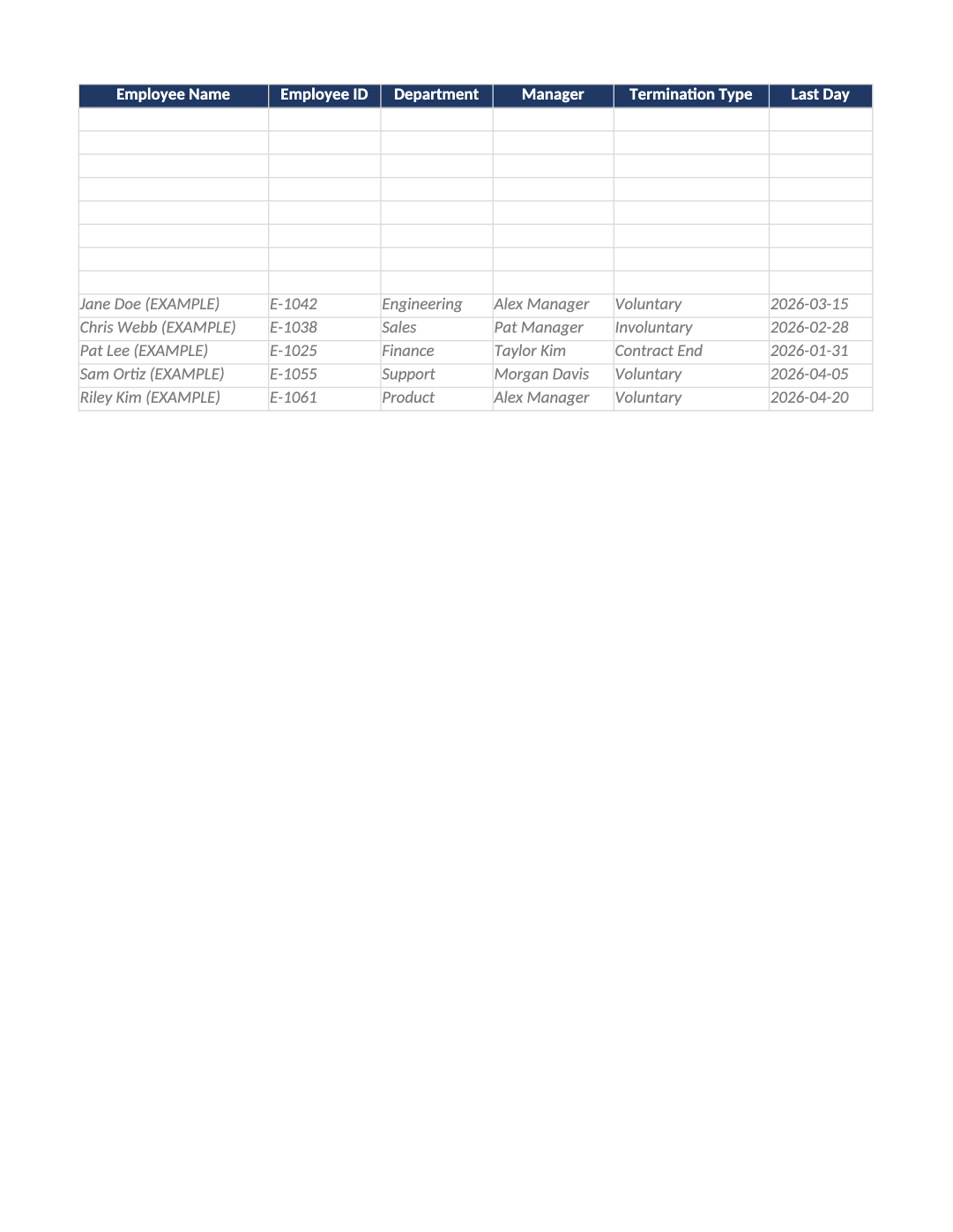
Employee Offboarding Checklist and Log
Revoke access, recover assets, and log terminations in one workbook auditors can sample.
Employee offboarding checklist template — Log every departure in the workbook — same-day access removal is a common SOC 2 test. Use dropdowns and do not leave termination dates blank.
Recommended Owner: IT + HR | Manager confirms knowledge transfer
What this file is for
Document purpose
Termination log proving access revoked and assets recovered (CC6.2, CC6.3).
In your program: Same-day prod revocation; auditors sample recent terminations.
Before you start
Getting Started
- Open Instructions first — set workbook owner, then add one Offboarding Log row per departure.
- Run the Checklist tab tasks 1–11 in parallel with log updates — do not mark Status = Complete until tasks 3–6 and 11 are Done.
- Export IdP disable proof and prod access removal tickets into Evidence Link before filing the row.
Document tour
Fill out the file section by section
Work through the sections below in order. Each block matches a heading or tab in the downloaded HR-002 file.
- Set workbook owner and version; workflow is Instructions → Offboarding Log → Checklist per termination.
- Same-day prod access removal is the most common CC6.3 audit test — align with COR-002 offboarding SLA.
- Check Dashboard after each offboard for incomplete revocations and missing evidence links.
- One row per termination — work column-by-column below; auditors sample recent Complete rows.
- Status = Complete only when IdP/Email Disabled and Prod Access Revoked are both Yes.
- Delete gray Acme example rows before sharing with auditors.
Employee Name
- Fill Employee Name for every in-scope row on Offboarding Log — use dropdowns where provided.
- Do not leave cells blank for active records; use N/A with a short reason if truly not applicable.
Employee ID
- Assign stable Employee ID values — never reuse an ID for a different record in the audit period.
- Cross-reference IDs in related toolkit docs (SOC-021, COR-014, HR-001, etc.).
Department
- Fill Department for every in-scope row on Offboarding Log — use dropdowns where provided.
- Do not leave cells blank for active records; use N/A with a short reason if truly not applicable.
Manager
- Name a person (not a team inbox) in Manager — auditors interview control owners.
- Must match COR-005 org chart or SOC-024 control owner assignments where applicable.
Termination Type
- Fill Termination Type for every in-scope row on Offboarding Log — use dropdowns where provided.
- Do not leave cells blank for active records; use N/A with a short reason if truly not applicable.
Last Day
- Use consistent Last Day format (YYYY-MM-DD) aligned with HRIS, IdP, or LMS exports.
- Dates must match supporting evidence — auditors compare log timestamps to HR records.
Offboarding Owner
- Name a person (not a team inbox) in Offboarding Owner — auditors interview control owners.
- Must match COR-005 org chart or SOC-024 control owner assignments where applicable.
Status
- Select Status from the dropdown — free text breaks Dashboard formulas and heatmaps.
- Update through the lifecycle (Not Started → In Progress → Complete/Closed) before sign-off.
IdP/Email Disabled
- Fill IdP/Email Disabled for every in-scope row on Offboarding Log — use dropdowns where provided.
- Do not leave cells blank for active records; use N/A with a short reason if truly not applicable.
Prod Access Revoked
- Fill Prod Access Revoked for every in-scope row on Offboarding Log — use dropdowns where provided.
- Do not leave cells blank for active records; use N/A with a short reason if truly not applicable.
Equipment Returned
- Fill Equipment Returned for every in-scope row on Offboarding Log — use dropdowns where provided.
- Do not leave cells blank for active records; use N/A with a short reason if truly not applicable.
Exit Interview
- Fill Exit Interview for every in-scope row on Offboarding Log — use dropdowns where provided.
- Do not leave cells blank for active records; use N/A with a short reason if truly not applicable.
Completed Date
- Use consistent Completed Date format (YYYY-MM-DD) aligned with HRIS, IdP, or LMS exports.
- Dates must match supporting evidence — auditors compare log timestamps to HR records.
Notes
- Fill Notes for every in-scope row on Offboarding Log — use dropdowns where provided.
- Do not leave cells blank for active records; use N/A with a short reason if truly not applicable.
Evidence Link
- Fill Evidence Link with a URL, ticket, or export path auditors can open — not a local-only path.
- Re-verify links before fieldwork; broken evidence links are a common audit finding.
- Use this tab per termination alongside the log — mark Done? as you complete each task.
- Tasks 3–6 (identity and access) must finish on or before last employment day where possible.
- Task 11 ties the checklist to CC6.3 evidence — link the filed record in log Evidence Link.
Tasks 1–2 · HR notification & exit
- Task 1: HR notifies IT and manager of termination date — ticket or email thread as proof.
- Task 2: Exit interview scheduled or waived with documented reason (Waived is valid if policy allows).
Tasks 3–6 · Access revocation (audit focus)
- Task 3: Disable IdP/email or convert to shared mailbox — log IdP/Email Disabled = Yes on same day.
- Task 4: Revoke MFA devices and active SSO sessions — include mobile authenticator resets.
- Task 5: Remove production access (cloud consoles, repos, databases) — Prod Access Revoked = Yes before Complete.
- Task 6: Remove VPN/network access — often missed for remote employees; verify firewall/Zero Trust groups.
Tasks 7–10 · Assets, credentials & data
- Task 7: Collect company laptop and hardware — Equipment Returned = Yes when MDM shows deprovisioned.
- Task 8: Rotate shared credentials if the user knew team passwords or API keys.
- Task 9: Transfer file ownership, open tickets, and doc permissions to manager or successor.
- Task 10: Return physical badges and office keys — note N/A for fully remote staff if policy allows.
Task 11 · Evidence filing
- Task 11: File offboarding record as CC6.3 evidence — paste URL in log Evidence Link column.
- Include IdP export screenshot or ticket showing disable timestamp on or before Last Day.
Quality check
Before You Finalize
- No active prod accounts for terminated users in this log — Dashboard should show zero Prod Access Not Revoked.
- Revocation date ≤ last employment date for each row; Completed Date filled when Status = Complete.
- Gray Acme example rows deleted; every Complete row has Evidence Link populated.
Evidence
Where to Store It
- Store the completed file in your compliance evidence folder (signed PDF for policies).
- Register the document in COR-013 with version, owner, and next review date.
- Link the file from your evidence index or SOC-005 project plan when you use Phase 3 trackers.