Sample Access Review (Example Only)
Illustrates Q1 access review tabs and sign-off summary — pair with SOC-010 for your real review.
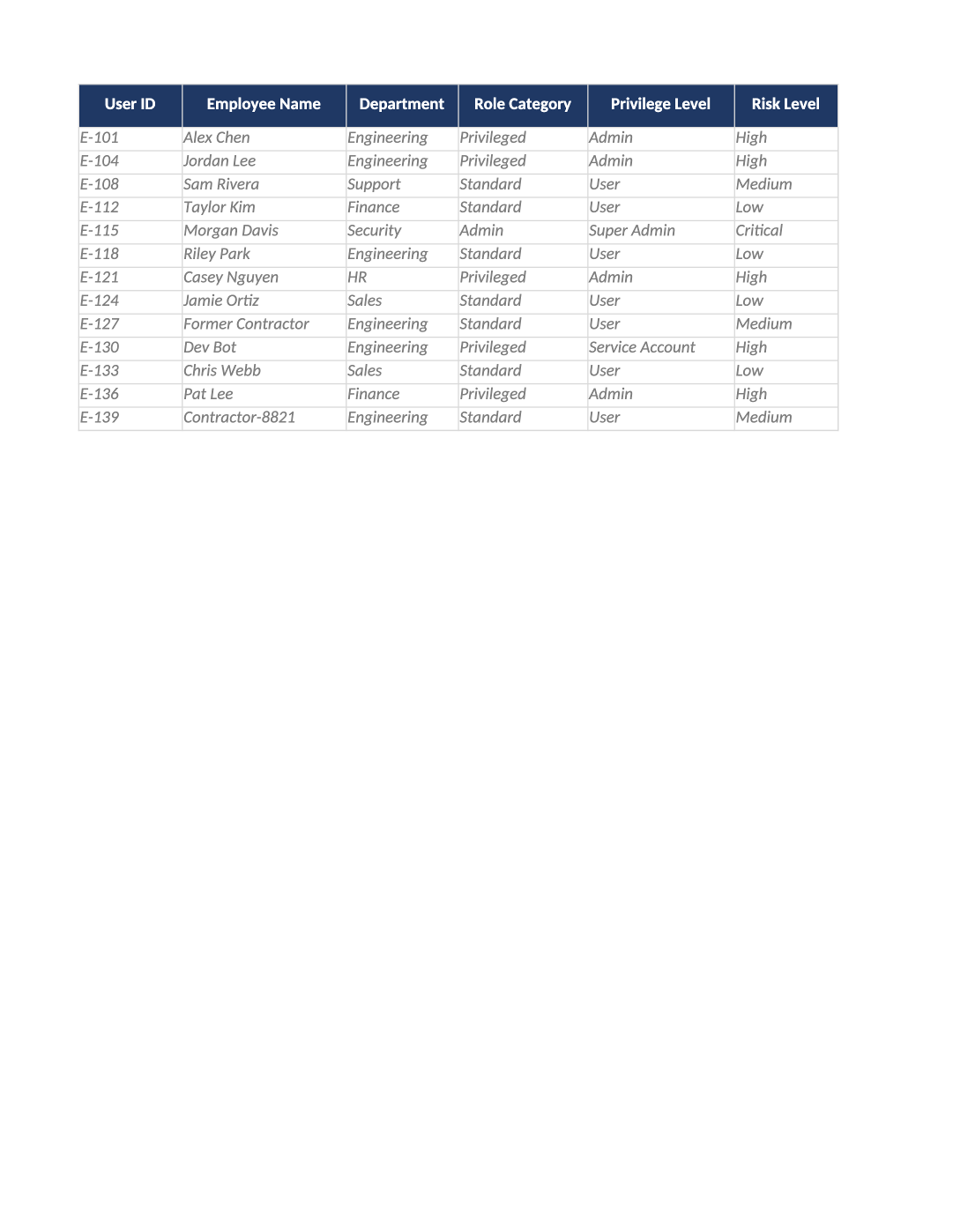
Sample Completed Access Review
Illustrates Q1 access review tabs and sign-off summary — pair with SOC-010 for your real review.
Sample quarterly access review example — Sanitized fictional data demonstrating how to document quarterly access reviews (CC6.3). Replace every row with exports from your IdP and apps.
Recommended Owner: IT Admin + Security Lead
What this file is for
Document purpose
Example quarterly access review workbook — procedure tab plus Q1 findings and summary sign-off.
In your program: Pairs with SOC-010 (live review) and SOC-018 (management attestation).
Before you start
Getting Started
- Example only — sanitized fictional data (Acme Corp). Do not submit to auditors or regulators.
- Copy structure and column usage into your live template (SOC-030, SOC-010, AI-014b, etc.).
- Delete or overwrite every sample row before internal circulation.
Document tour
Fill out the file section by section
Work through the sections below in order. Each block matches a heading or tab in the downloaded SOC-SAMP-02 file.
- Sanitized example — do not attach to SOC-018 as your real sign-off package.
- After editing About, search for `[` placeholders and gray sample names — auditors flag incomplete templates.
User ID
- Assign stable User ID values — never reuse an ID for a different record in the audit period.
- Cross-reference IDs in related toolkit docs (SOC-021, COR-014, HR-001, etc.).
Employee Name
- Fill Employee Name for every in-scope row on About — use dropdowns where provided.
- Do not leave cells blank for active records; use N/A with a short reason if truly not applicable.
Department
- Fill Department for every in-scope row on About — use dropdowns where provided.
- Do not leave cells blank for active records; use N/A with a short reason if truly not applicable.
Role Category
- Fill Role Category for every in-scope row on About — use dropdowns where provided.
- Do not leave cells blank for active records; use N/A with a short reason if truly not applicable.
Privilege Level
- Fill Privilege Level for every in-scope row on About — use dropdowns where provided.
- Do not leave cells blank for active records; use N/A with a short reason if truly not applicable.
Risk Level
- Assign stable Risk Level values — never reuse an ID for a different record in the audit period.
- Cross-reference IDs in related toolkit docs (SOC-021, COR-014, HR-001, etc.).
Systems / Access
- Fill Systems / Access for every in-scope row on About — use dropdowns where provided.
- Do not leave cells blank for active records; use N/A with a short reason if truly not applicable.
Last Review
- Use consistent Last Review format (YYYY-MM-DD) aligned with HRIS, IdP, or LMS exports.
- Dates must match supporting evidence — auditors compare log timestamps to HR records.
Next Review
- Use consistent Next Review format (YYYY-MM-DD) aligned with HRIS, IdP, or LMS exports.
- Dates must match supporting evidence — auditors compare log timestamps to HR records.
Review Status
- Use consistent Review Status format (YYYY-MM-DD) aligned with HRIS, IdP, or LMS exports.
- Dates must match supporting evidence — auditors compare log timestamps to HR records.
Completion Date
- Use consistent Completion Date format (YYYY-MM-DD) aligned with HRIS, IdP, or LMS exports.
- Dates must match supporting evidence — auditors compare log timestamps to HR records.
Reviewer
- Use consistent Reviewer format (YYYY-MM-DD) aligned with HRIS, IdP, or LMS exports.
- Dates must match supporting evidence — auditors compare log timestamps to HR records.
Decision
- Select Decision from the dropdown — free text breaks Dashboard formulas and heatmaps.
- Update through the lifecycle (Not Started → In Progress → Complete/Closed) before sign-off.
Control Ref
- Fill Control Ref for every in-scope row on About — use dropdowns where provided.
- Do not leave cells blank for active records; use N/A with a short reason if truly not applicable.
Last Login
- Fill Last Login for every in-scope row on About — use dropdowns where provided.
- Do not leave cells blank for active records; use N/A with a short reason if truly not applicable.
Inactive 90d+
- Fill Inactive 90d+ for every in-scope row on About — use dropdowns where provided.
- Do not leave cells blank for active records; use N/A with a short reason if truly not applicable.
- Use as a checklist outline when writing your SOC-010 Instructions steps.
- After editing Review Procedure, search for `[` placeholders and gray sample names — auditors flag incomplete templates.
User ID
- Assign stable User ID values — never reuse an ID for a different record in the audit period.
- Cross-reference IDs in related toolkit docs (SOC-021, COR-014, HR-001, etc.).
Employee Name
- Fill Employee Name for every in-scope row on Review Procedure — use dropdowns where provided.
- Do not leave cells blank for active records; use N/A with a short reason if truly not applicable.
Department
- Fill Department for every in-scope row on Review Procedure — use dropdowns where provided.
- Do not leave cells blank for active records; use N/A with a short reason if truly not applicable.
Role Category
- Fill Role Category for every in-scope row on Review Procedure — use dropdowns where provided.
- Do not leave cells blank for active records; use N/A with a short reason if truly not applicable.
Privilege Level
- Fill Privilege Level for every in-scope row on Review Procedure — use dropdowns where provided.
- Do not leave cells blank for active records; use N/A with a short reason if truly not applicable.
Risk Level
- Assign stable Risk Level values — never reuse an ID for a different record in the audit period.
- Cross-reference IDs in related toolkit docs (SOC-021, COR-014, HR-001, etc.).
Systems / Access
- Fill Systems / Access for every in-scope row on Review Procedure — use dropdowns where provided.
- Do not leave cells blank for active records; use N/A with a short reason if truly not applicable.
Last Review
- Use consistent Last Review format (YYYY-MM-DD) aligned with HRIS, IdP, or LMS exports.
- Dates must match supporting evidence — auditors compare log timestamps to HR records.
Next Review
- Use consistent Next Review format (YYYY-MM-DD) aligned with HRIS, IdP, or LMS exports.
- Dates must match supporting evidence — auditors compare log timestamps to HR records.
Review Status
- Use consistent Review Status format (YYYY-MM-DD) aligned with HRIS, IdP, or LMS exports.
- Dates must match supporting evidence — auditors compare log timestamps to HR records.
Completion Date
- Use consistent Completion Date format (YYYY-MM-DD) aligned with HRIS, IdP, or LMS exports.
- Dates must match supporting evidence — auditors compare log timestamps to HR records.
Reviewer
- Use consistent Reviewer format (YYYY-MM-DD) aligned with HRIS, IdP, or LMS exports.
- Dates must match supporting evidence — auditors compare log timestamps to HR records.
Decision
- Select Decision from the dropdown — free text breaks Dashboard formulas and heatmaps.
- Update through the lifecycle (Not Started → In Progress → Complete/Closed) before sign-off.
Control Ref
- Fill Control Ref for every in-scope row on Review Procedure — use dropdowns where provided.
- Do not leave cells blank for active records; use N/A with a short reason if truly not applicable.
Last Login
- Fill Last Login for every in-scope row on Review Procedure — use dropdowns where provided.
- Do not leave cells blank for active records; use N/A with a short reason if truly not applicable.
Inactive 90d+
- Fill Inactive 90d+ for every in-scope row on Review Procedure — use dropdowns where provided.
- Do not leave cells blank for active records; use N/A with a short reason if truly not applicable.
- Shows how to document account, role, last login, and reviewer decision per row.
- Your export should include service accounts and break-glass IDs auditors sample.
User ID
- Assign stable User ID values — never reuse an ID for a different record in the audit period.
- Cross-reference IDs in related toolkit docs (SOC-021, COR-014, HR-001, etc.).
Employee Name
- Fill Employee Name for every in-scope row on Q1 Access Review — use dropdowns where provided.
- Do not leave cells blank for active records; use N/A with a short reason if truly not applicable.
Department
- Fill Department for every in-scope row on Q1 Access Review — use dropdowns where provided.
- Do not leave cells blank for active records; use N/A with a short reason if truly not applicable.
Role Category
- Fill Role Category for every in-scope row on Q1 Access Review — use dropdowns where provided.
- Do not leave cells blank for active records; use N/A with a short reason if truly not applicable.
Privilege Level
- Fill Privilege Level for every in-scope row on Q1 Access Review — use dropdowns where provided.
- Do not leave cells blank for active records; use N/A with a short reason if truly not applicable.
Risk Level
- Assign stable Risk Level values — never reuse an ID for a different record in the audit period.
- Cross-reference IDs in related toolkit docs (SOC-021, COR-014, HR-001, etc.).
Systems / Access
- Fill Systems / Access for every in-scope row on Q1 Access Review — use dropdowns where provided.
- Do not leave cells blank for active records; use N/A with a short reason if truly not applicable.
Last Review
- Use consistent Last Review format (YYYY-MM-DD) aligned with HRIS, IdP, or LMS exports.
- Dates must match supporting evidence — auditors compare log timestamps to HR records.
Next Review
- Use consistent Next Review format (YYYY-MM-DD) aligned with HRIS, IdP, or LMS exports.
- Dates must match supporting evidence — auditors compare log timestamps to HR records.
Review Status
- Use consistent Review Status format (YYYY-MM-DD) aligned with HRIS, IdP, or LMS exports.
- Dates must match supporting evidence — auditors compare log timestamps to HR records.
Completion Date
- Use consistent Completion Date format (YYYY-MM-DD) aligned with HRIS, IdP, or LMS exports.
- Dates must match supporting evidence — auditors compare log timestamps to HR records.
Reviewer
- Use consistent Reviewer format (YYYY-MM-DD) aligned with HRIS, IdP, or LMS exports.
- Dates must match supporting evidence — auditors compare log timestamps to HR records.
Decision
- Select Decision from the dropdown — free text breaks Dashboard formulas and heatmaps.
- Update through the lifecycle (Not Started → In Progress → Complete/Closed) before sign-off.
Control Ref
- Fill Control Ref for every in-scope row on Q1 Access Review — use dropdowns where provided.
- Do not leave cells blank for active records; use N/A with a short reason if truly not applicable.
Last Login
- Fill Last Login for every in-scope row on Q1 Access Review — use dropdowns where provided.
- Do not leave cells blank for active records; use N/A with a short reason if truly not applicable.
Inactive 90d+
- Fill Inactive 90d+ for every in-scope row on Q1 Access Review — use dropdowns where provided.
- Do not leave cells blank for active records; use N/A with a short reason if truly not applicable.
- Summary counts and exceptions — mirror this structure on SOC-018 attestation.
- After editing Review Summary, search for `[` placeholders and gray sample names — auditors flag incomplete templates.
Metric
- Fill Metric for every in-scope row on Review Summary — use dropdowns where provided.
- Do not leave cells blank for active records; use N/A with a short reason if truly not applicable.
Value
- Fill Value for every in-scope row on Review Summary — use dropdowns where provided.
- Do not leave cells blank for active records; use N/A with a short reason if truly not applicable.
Quality check
Before You Finalize
- Live reviews must use current IdP/app exports — not this fictional Q1 tab.
Evidence
Where to Store It
- Store the completed file in your compliance evidence folder (signed PDF for policies).
- Register the document in COR-013 with version, owner, and next review date.
- Link the file from your evidence index or SOC-005 project plan when you use Phase 3 trackers.