SOC 2 Control Scoping Worksheet
Track control implementation, evidence, and audit readiness in a single live workbook — built for startups, no signup required.
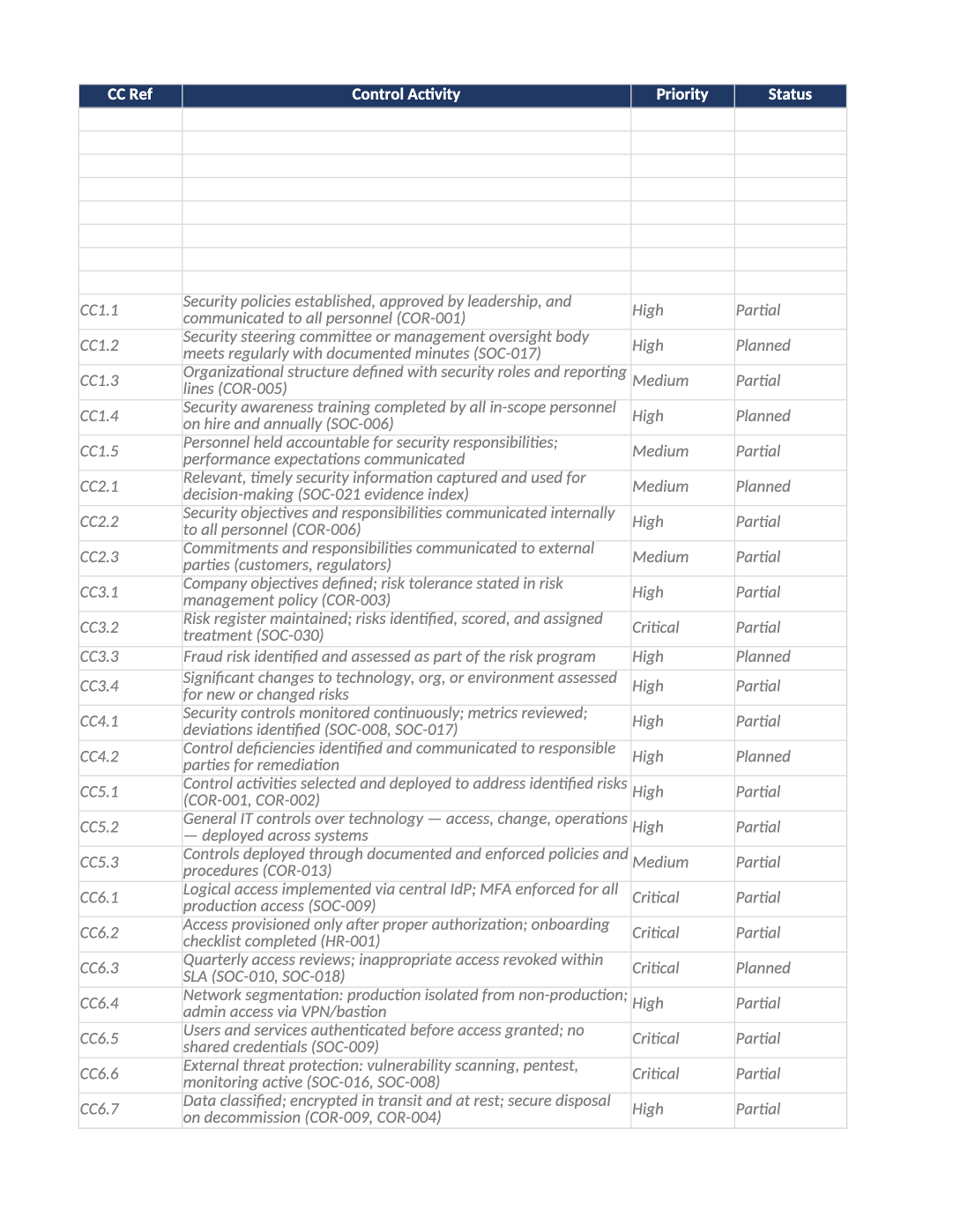
Track controls, evidence, and readiness in one workbook.
Pre-filled control register, dashboard, dropdowns, and conditional formatting — so you can track status, evidence, and remediation without building a tracker from scratch.
Download Control Scoping Worksheet (.xlsx)This workbook helps you track SOC 2 control implementation, evidence collection, remediation progress, and overall audit readiness. It uses formulas, dropdowns, filters, and conditional formatting to provide a live view of your compliance posture.
Recommended Owner: Compliance Lead, CTO, Security Lead, or Operations Manager.
Section 1
Getting Started
- Enable Editing: When you first open the file, click “Enable Editing” if prompted by Excel.
- Instructions tab: Open the workbook’s Instructions tab for document ID, version, and quick-start steps.
- Version Control: Save periodic copies of this workbook (monthly or quarterly) to maintain historical readiness records and evidence tracking history.
This workbook is intended for readiness and operational tracking purposes only and does not guarantee audit certification or auditor acceptance.
Section 2
Using the Control Register
The Control Register tab is your main workspace. It contains pre-filled, actionable controls mapped to SOC 2 criteria.
Update Status: Use the dropdown in the Status column to select:
- ImplementedActive and evidenced.
- PartialExists but incomplete.
- PlannedNot yet implemented.
- N/ANot applicable.
- Assign Ownership: Fill in the Owner and Team columns to ensure accountability.
- Set Targets: If a control is “Planned,” add a Target Date to track remediation.
- Link Evidence: Paste direct links to your evidence (Google Drive, Notion, Jira) in the Evidence URL column.
Rows are color-coded based on risk. Red indicates Critical/Planned items; Yellow indicates High/Partial items. Use this to prioritize your work.
Section 3
Monitoring the Dashboard
The Dashboard tab provides a high-level view of your progress.
| Metric | What it shows |
|---|---|
| Readiness % | Automatically calculates based on implemented controls. |
| Readiness Tier | Early Stage, Developing, Audit Ready, or Mature. |
| Gap Count | Outstanding Critical and High-priority gaps. |
Use the dashboard to monitor implementation progress and identify outstanding gaps for leadership review.
Workbook tab
Domain Summary (CC Rollup)
The Domain Summary tab summarizes Trust Services Criteria domains (CC1–CC9). It auto-calculates from the Control Register — do not type over the formulas.
- Start here for a leadership view before drilling into individual controls.
- Prioritize domains flagged High Risk or Add Controls.
- After updating statuses on the Control Register, review this tab again before audit prep.
- Cross-check scope decisions from SOC-002 before sign-off.
Section 4
Reviewing Inherited Controls
The Inherited Controls tab lists controls (like Physical Security) managed by your cloud provider (AWS, Azure, GCP).
You do not need to implement these. Ensure you have downloaded your provider’s SOC 2 report to validate them during your audit.
Section 5
Preparing for an Audit
When you are ready to engage an auditor, use this checklist:
- Ensure all “Implemented” controls have linked evidence.
- Confirm all owners are assigned and aware of their responsibilities.
- Review overdue remediation items in the Control Register.
- Export dashboard metrics for leadership review.
- Share the workbook (or a PDF snapshot) with your auditor to demonstrate organizational maturity.
Section 6
Best Practices
- Be Accurate: Only mark controls as “Implemented” if evidence exists and the process is consistently followed. Auditors may test any implemented control.
- Stay Current: Review and update the workbook regularly as controls evolve.
- Use Filters: Filter by Priority or Status in the Control Register to focus on specific teams or risk levels.
Section 7
Frequently Asked Questions
These are placeholders ([Select Status]). They serve as default values or hints. They will change or disappear when you select an option from the dropdown.
Yes. Insert a new row in the Control Register tab. The Dashboard formulas will automatically update to include your new entries.
Update the Inherited Controls tab to reflect your specific infrastructure provider (DigitalOcean, Heroku, or On-Premise).
You can share the Excel file directly to show live progress and evidence links, or save a copy as a PDF for a static snapshot.