User Access Review Guide
Quarterly access review matrix with approvers, exceptions, and remediation tracking.
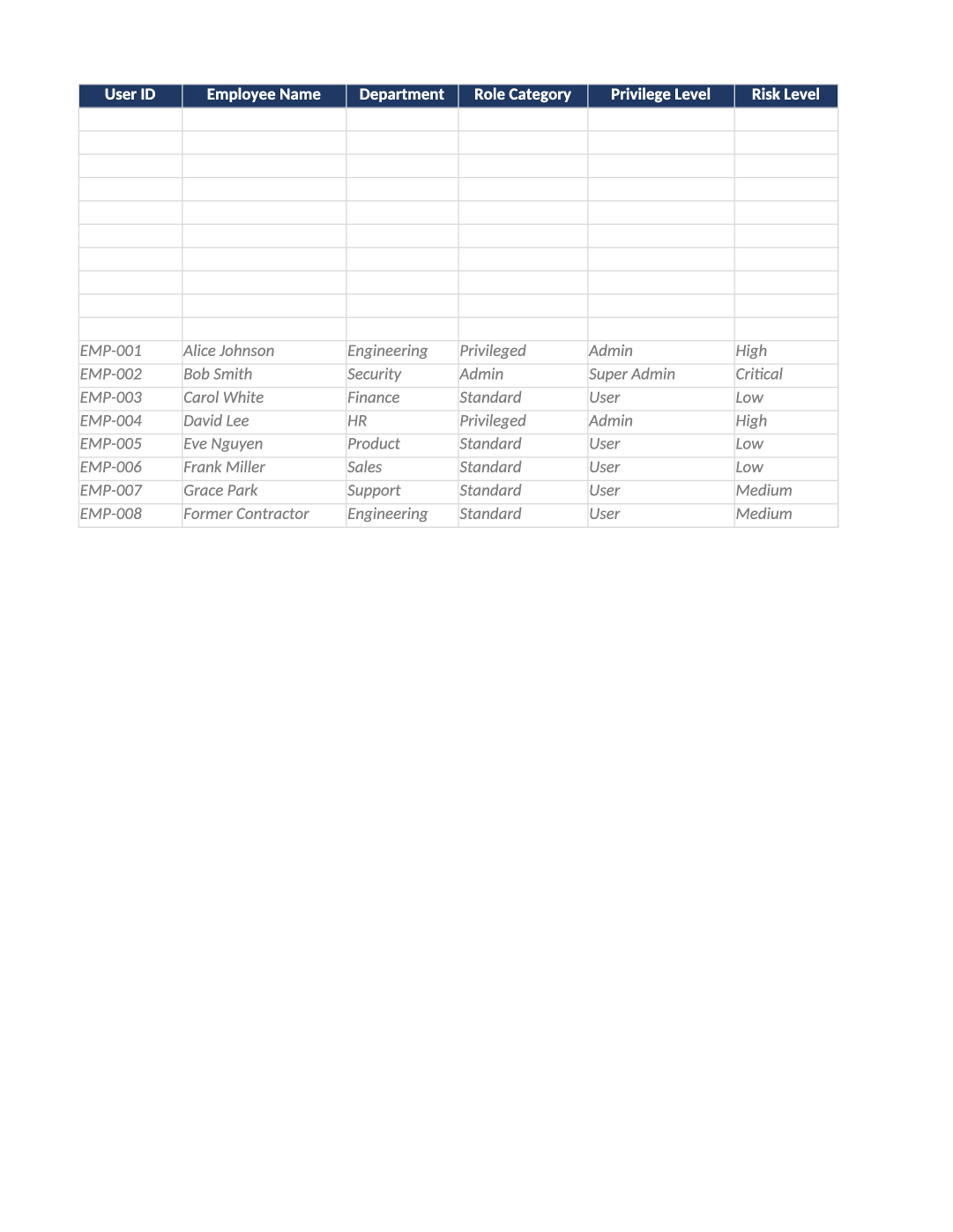
User Access Review Procedure
Quarterly access review matrix with approvers, exceptions, and remediation tracking.
User access review template SOC 2 — Export current users from each system into the workbook. Managers attest Yes/No — document removals in the remediation column.
Recommended Owner: Security or IT | System owners attest
What this file is for
Document purpose
Quarterly access review procedure and log (CC6.3).
In your program: Managers attest; revocations same day; SOC-018 for formal sign-off in Phase 3.
Before you start
Getting Started
- Enable Editing; start on the Instructions sheet for tab order and version metadata.
- Use dropdowns only in validated columns; delete gray sample rows before auditor samples.
- Check Dashboard after data entry — formulas summarize completion and risk.
Document tour
Fill out the file section by section
Work through the sections below in order. Each block matches a heading or tab in the downloaded SOC-010 file.
- Follow 7 steps on Instructions — export IdP users first.
- After editing Instructions, search for `[` placeholders and gray sample names — auditors flag incomplete templates.
- Built-in 7-step procedure tab — your team’s operational runbook for each review cycle.
- After editing Review Procedure, search for `[` placeholders and gray sample names — auditors flag incomplete templates.
User ID
- Assign stable User ID values — never reuse an ID for a different record in the audit period.
- Cross-reference IDs in related toolkit docs (SOC-021, COR-014, HR-001, etc.).
Employee Name
- Fill Employee Name for every in-scope row on Review Procedure — use dropdowns where provided.
- Do not leave cells blank for active records; use N/A with a short reason if truly not applicable.
Department
- Fill Department for every in-scope row on Review Procedure — use dropdowns where provided.
- Do not leave cells blank for active records; use N/A with a short reason if truly not applicable.
Role Category
- Fill Role Category for every in-scope row on Review Procedure — use dropdowns where provided.
- Do not leave cells blank for active records; use N/A with a short reason if truly not applicable.
Privilege Level
- Fill Privilege Level for every in-scope row on Review Procedure — use dropdowns where provided.
- Do not leave cells blank for active records; use N/A with a short reason if truly not applicable.
Risk Level
- Assign stable Risk Level values — never reuse an ID for a different record in the audit period.
- Cross-reference IDs in related toolkit docs (SOC-021, COR-014, HR-001, etc.).
Systems / Access
- Fill Systems / Access for every in-scope row on Review Procedure — use dropdowns where provided.
- Do not leave cells blank for active records; use N/A with a short reason if truly not applicable.
Last Review
- Use consistent Last Review format (YYYY-MM-DD) aligned with HRIS, IdP, or LMS exports.
- Dates must match supporting evidence — auditors compare log timestamps to HR records.
Next Review
- Use consistent Next Review format (YYYY-MM-DD) aligned with HRIS, IdP, or LMS exports.
- Dates must match supporting evidence — auditors compare log timestamps to HR records.
Review Status
- Use consistent Review Status format (YYYY-MM-DD) aligned with HRIS, IdP, or LMS exports.
- Dates must match supporting evidence — auditors compare log timestamps to HR records.
Completion Date
- Use consistent Completion Date format (YYYY-MM-DD) aligned with HRIS, IdP, or LMS exports.
- Dates must match supporting evidence — auditors compare log timestamps to HR records.
Reviewer
- Use consistent Reviewer format (YYYY-MM-DD) aligned with HRIS, IdP, or LMS exports.
- Dates must match supporting evidence — auditors compare log timestamps to HR records.
Decision
- Select Decision from the dropdown — free text breaks Dashboard formulas and heatmaps.
- Update through the lifecycle (Not Started → In Progress → Complete/Closed) before sign-off.
Control Ref
- Fill Control Ref for every in-scope row on Review Procedure — use dropdowns where provided.
- Do not leave cells blank for active records; use N/A with a short reason if truly not applicable.
Last Login
- Fill Last Login for every in-scope row on Review Procedure — use dropdowns where provided.
- Do not leave cells blank for active records; use N/A with a short reason if truly not applicable.
Inactive 90d+
- Fill Inactive 90d+ for every in-scope row on Review Procedure — use dropdowns where provided.
- Do not leave cells blank for active records; use N/A with a short reason if truly not applicable.
- User ID / Name / Department: from IdP export.
- Role Category / Privilege / Risk: use dropdowns — drives review frequency.
- Systems / Access: list prod systems (GitHub, AWS, etc.).
- Review Status / Decision: Completed + Approved/Revoked/Modified — no blank decisions.
- Inactive 90d+: flag dormant accounts for revocation.
- Exception columns: required if review delayed (approver + expiry).
User ID
- Assign stable User ID values — never reuse an ID for a different record in the audit period.
- Cross-reference IDs in related toolkit docs (SOC-021, COR-014, HR-001, etc.).
Employee Name
- Fill Employee Name for every in-scope row on Access Review — use dropdowns where provided.
- Do not leave cells blank for active records; use N/A with a short reason if truly not applicable.
Department
- Fill Department for every in-scope row on Access Review — use dropdowns where provided.
- Do not leave cells blank for active records; use N/A with a short reason if truly not applicable.
Role Category
- Fill Role Category for every in-scope row on Access Review — use dropdowns where provided.
- Do not leave cells blank for active records; use N/A with a short reason if truly not applicable.
Privilege Level
- Fill Privilege Level for every in-scope row on Access Review — use dropdowns where provided.
- Do not leave cells blank for active records; use N/A with a short reason if truly not applicable.
Risk Level
- Assign stable Risk Level values — never reuse an ID for a different record in the audit period.
- Cross-reference IDs in related toolkit docs (SOC-021, COR-014, HR-001, etc.).
Systems / Access
- Fill Systems / Access for every in-scope row on Access Review — use dropdowns where provided.
- Do not leave cells blank for active records; use N/A with a short reason if truly not applicable.
Last Review
- Use consistent Last Review format (YYYY-MM-DD) aligned with HRIS, IdP, or LMS exports.
- Dates must match supporting evidence — auditors compare log timestamps to HR records.
Next Review
- Use consistent Next Review format (YYYY-MM-DD) aligned with HRIS, IdP, or LMS exports.
- Dates must match supporting evidence — auditors compare log timestamps to HR records.
Review Status
- Use consistent Review Status format (YYYY-MM-DD) aligned with HRIS, IdP, or LMS exports.
- Dates must match supporting evidence — auditors compare log timestamps to HR records.
Completion Date
- Use consistent Completion Date format (YYYY-MM-DD) aligned with HRIS, IdP, or LMS exports.
- Dates must match supporting evidence — auditors compare log timestamps to HR records.
Reviewer
- Use consistent Reviewer format (YYYY-MM-DD) aligned with HRIS, IdP, or LMS exports.
- Dates must match supporting evidence — auditors compare log timestamps to HR records.
Decision
- Select Decision from the dropdown — free text breaks Dashboard formulas and heatmaps.
- Update through the lifecycle (Not Started → In Progress → Complete/Closed) before sign-off.
Control Ref
- Fill Control Ref for every in-scope row on Access Review — use dropdowns where provided.
- Do not leave cells blank for active records; use N/A with a short reason if truly not applicable.
Last Login
- Fill Last Login for every in-scope row on Access Review — use dropdowns where provided.
- Do not leave cells blank for active records; use N/A with a short reason if truly not applicable.
Inactive 90d+
- Fill Inactive 90d+ for every in-scope row on Access Review — use dropdowns where provided.
- Do not leave cells blank for active records; use N/A with a short reason if truly not applicable.
Quality check
Before You Finalize
- No Pending reviews past due without exception columns filled.
- Revoked users match HR-002 terminations.
Evidence
Where to Store It
- Store the completed file in your compliance evidence folder (signed PDF for policies).
- Register the document in COR-013 with version, owner, and next review date.
- Link the file from your evidence index or SOC-005 project plan when you use Phase 3 trackers.